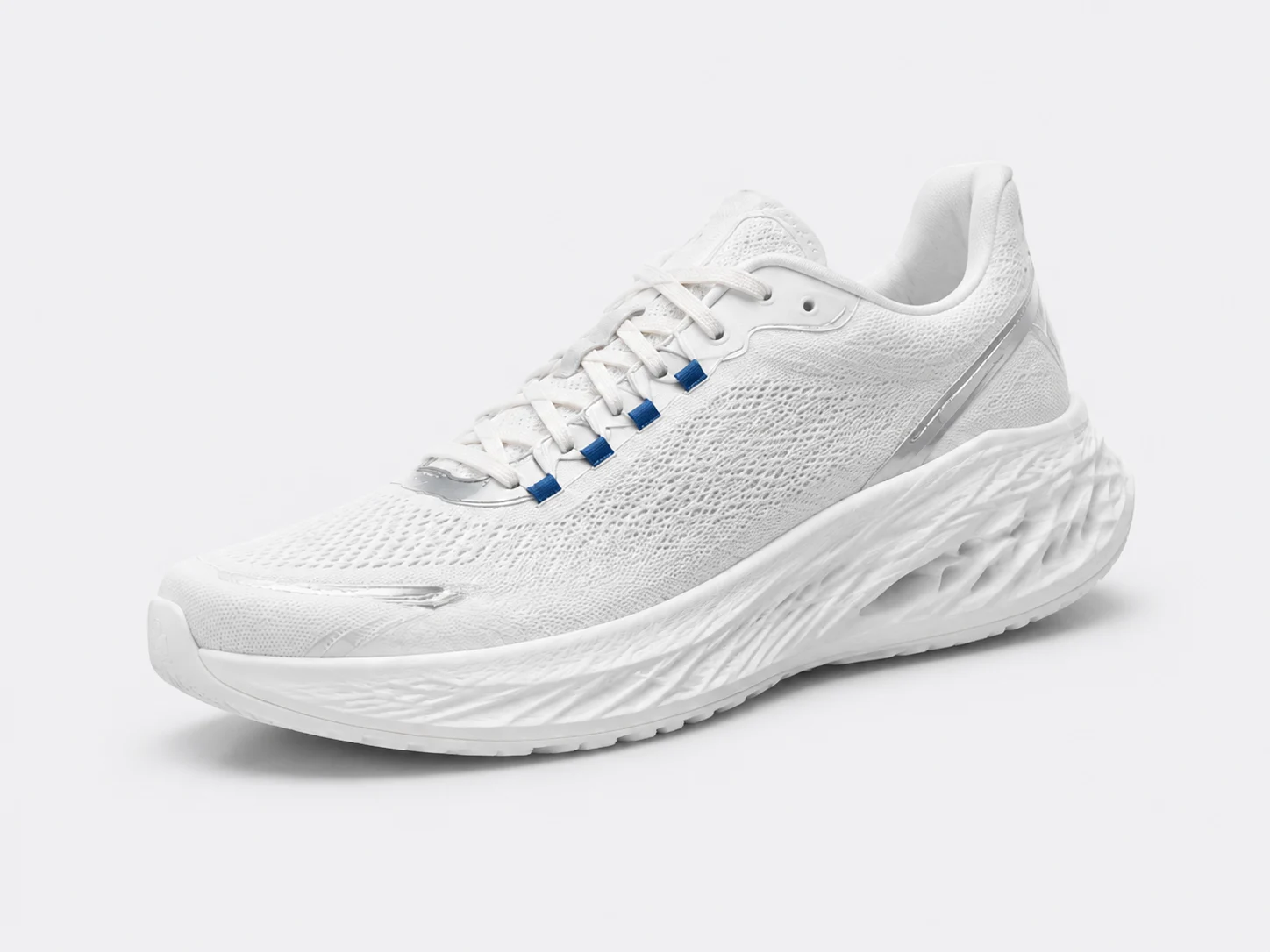
Say you have three ads ready for a sneaker and have rewritten the copy a few times. You probably want to know which one will bring in orders. I would put that choice aside for a moment and open the product page on my phone. Can I buy the advertised version? What does shipping cost to a US address? If the ad gets someone interested but they get stuck before payment, a prettier image will not solve that problem.
If you want orders, don't get distracted by cheap clicks
Here is the setup for this guide: someone follows a Facebook or Instagram ad to your Shopify store or website and buys there. This is not about closing sales in messages or installing your own tracking code on an Amazon product page.
Start with one sentence: 'Sell this sneaker to US shoppers who complete their purchase on the product page.' Then compare that with the campaign objective, conversion location and performance goal. Meta's official course treats these as connected decisions, not three unrelated settings. Meta Blueprint: Selecting campaign objectives
For website purchases, review the Sales objective and website-purchase options available in your account. A visit is welcome, but 'the clicks are cheap' and 'people want to buy this shoe' are not the same finding.
Be your own customer for a few minutes
Leave the familiar admin screen. Open the actual ad destination on a phone, preferably in a browser where you are not signed in as the store owner. Without you explaining anything, can a shopper tell what arrives, what it costs and when to expect it?
- Select the advertised colour and size. Check stock and whether the price matches the ad.
- Add it to the cart and enter an address in the target country. Check the total after shipping and tax appear.
- Look for delivery times, return terms and a working way to contact the store.
- Test payment and order confirmation using a method your store supports. Try the advertised discount code too.
First distinguish a pre-launch store from one serving real customers. For a store that is not trading, follow Shopify's test-order instructions; gateway testing requires a selected paid plan. Testing with a real payment can incur fees. Keep test orders out of advertising results. Shopify: Placing a test order
Do not enable Shopify Payments test mode on a live store just to complete this checklist. It captures no real payments, although some express payments can still appear to complete checkout. Shopify explicitly advises against enabling it in production; ask the store owner to arrange verification without disrupting customers. On a test store, deactivate automatic fulfillment apps before placing test orders, do not fulfill them or buy shipping labels, and restore live payment settings when testing is finished. Shopify: Testing Shopify Payments
If a US address produces no shipping quote, the useful next step is not a new audience setting. Send the page screenshot to the store operator, fix shipping and try again. Keep the product URL, device, delivery country and order result so nobody has to reconstruct the check later.
Being signed in doesn't mean it is the right account
This part is not exciting, but it deserves a look, especially if someone else built the store or managed previous ads. Are the account, Page and payment method on screen actually the ones this store is meant to use?
When connecting Shopify's Facebook and Instagram by Meta channel, the Page and business portfolio have separate access and ownership requirements. Signing in to a personal Facebook account does not establish permission to connect the required Page. Shopify: Facebook and Instagram by Meta setup
- Keep the names and IDs of the ad account, Facebook Page, business portfolio and data source together for checking with the administrator.
- Review currency, time zone, payment method and restriction notices. Confirm the person running ads has the access they need.
- Open the Instagram placement preview and check the avatar and displayed name before publishing.
If a connection fails, send the actual error to the existing administrator or official support. Check ownership and permissions before trying anything else. Do not buy accounts, share passwords, repeatedly create accounts or casually disconnect a store that is still in use.
'Connected' doesn't mean the order was recorded correctly
Think of tracking as keeping a record: a shopper views a product, adds it to a cart and pays. You do not need to understand every technical detail yet. Start by checking whether a purchase was recorded correctly.
In Shopify's official channel, go to Sales channels → Facebook & Instagram → Settings → Data sharing settings. The Pixel records browser activity; the Conversions API can send server records. Choose what to share according to your privacy requirements, not by assuming the highest sharing level finishes the job. Shopify: Facebook data sharing
- Check the data-source ID: the destination receiving these records. Make sure you are not watching an old store's data while testing a new one.
- Follow the integration's instructions to test views, carts and purchases, noting each action and time. Use the checkout-test method above and confirm whether that mode sends events.
- Find Purchase and compare its value and currency with the order. No purchase should mean no invented order. Check the integration's amount definition rather than substituting the product's sticker price.
- If the browser and server each send a record, ask the integration owner to confirm they are recognised as one order. This is deduplication: two received records do not necessarily mean two purchases.
First identify the problem. No records: check the source, test mode, customer consent and browser blocking. Wrong amount: compare the order details. Possible duplicates: ask the integration owner to check for overlapping tracking installations. Do not delete theme code just to see what happens.
A useful request for help sounds like: 'I made this test order at this time, using this source ID, but the purchase amount does not match.' Include a screenshot with buyer details hidden. Once recording is correct, keep one distinction in mind: receiving a purchase event does not mean the ad report must credit that order to an ad.
Now come back to those three ads
Instead of asking which looks best, I would ask whether they say three different things. If only the background changed from blue to green, the test tells you little about what matters to the buyer.
| The same sneaker | What the buyer should see | What I would change first |
|---|---|---|
| Product close-up | Shape, upper and details | Reduce decoration if it competes with the shoe |
| Everyday styling | How the shoe fits into daily wear | Reframe if the person gets attention but the shoe is hard to see |
| Visual association | A memorable idea connected to the item | Replace any idea that implies unproven performance |
Three directions are a manageable starting suggestion, not a platform rule. Keep the actual style and material intact, then preview every planned placement. Is the shoe cropped? Does text hide it? Does the link lead to the same item? Save editable copy separately to make later resizing easier.
Decide what you can spend and when to stop
Before asking what a beginner should spend per day, ask what you can afford to spend on this test even if it produces no orders. Add up campaigns and ad sets; a daily budget is not the total cost of the test.
Then check the spending and end-date controls actually available in the account. Agree who watches cumulative spend and when to review it. A number in a worksheet cannot turn the ads off for you.
- A broken link, failed payment, unavailable item or clearly wrong purchase record: pause the affected ads and fix it.
- No obvious fault, but no order yet: observe within the agreed spending boundary and review schedule. Do not change image, audience and page after a few clicks.
- The spending boundary is reached without a clear answer: end the test and record that you cannot judge yet, rather than paying indefinitely for an answer.
Leave a checklist someone can actually use
Use just three statuses: Pass, Fix or Unconfirmed. If you do not know, write Unconfirmed. For the missing shipping quote, the note could be: 'Fix; store operator checks shipping settings; retest the same address afterwards.' Now there is a person to ask and a clear next action.
Product / SKU / product URL: Target country / goal / primary metric: Use status: Pass / Fix / Unconfirmed Variant, stock, price and promise: Mobile checkout / live payment mode restored: Delivery, returns and contact details: Account / Page / source ID / access: Events / value / currency / deduplication evidence: Selected-placement previews: Total spend boundary / account control / end condition: Unresolved issue / owner / review time:
If checkout, account access or critical tracking is still unresolved, hold the launch. Once checked, let shoppers put those three ads to the test. The checklist removes known problems; it cannot promise orders.
Key takeaways
- Test the product page and checkout before paying to bring shoppers in.
- Write down the purchase goal, measurement setup and spending boundary.
- Resolve critical failures before launch; more creative will not fix a broken checkout.
Open the intended product link on your phone and work through to the payment step. Resolve the first problem you encounter before deciding whether to publish today.
Further reading
Sources checked: